Kollie AI for HubSpot Setup Guide

What this app does
With Kollie AI and HubSpot connected, your teams can:
Log calls automatically
inbound and outbound calls appear as call activities in HubSpot with summaries, outcomes, and transcript links.
Sync contacts
update HubSpot contact records in real time with details collected during calls (phone, email, IDs, preferences).
Trigger calls from HubSpot
launch AI-powered calls directly from HubSpot workflows, passing contact info into the conversation.
Keep HubSpot as your single source of truth:
automate call handling and data entry while ensuring contacts stay up to date.
Step 1. Install and connect
- Log in to your Kollie AI dashboard.
- Go to Settings → Integrations.
- Select HubSpot and click Connect.
- You’ll be redirected to a HubSpot authorization screen. Log in with your HubSpot account.
- Choose the account (portal) to connect.
Review the requested permissions (scopes) and click Authorize.
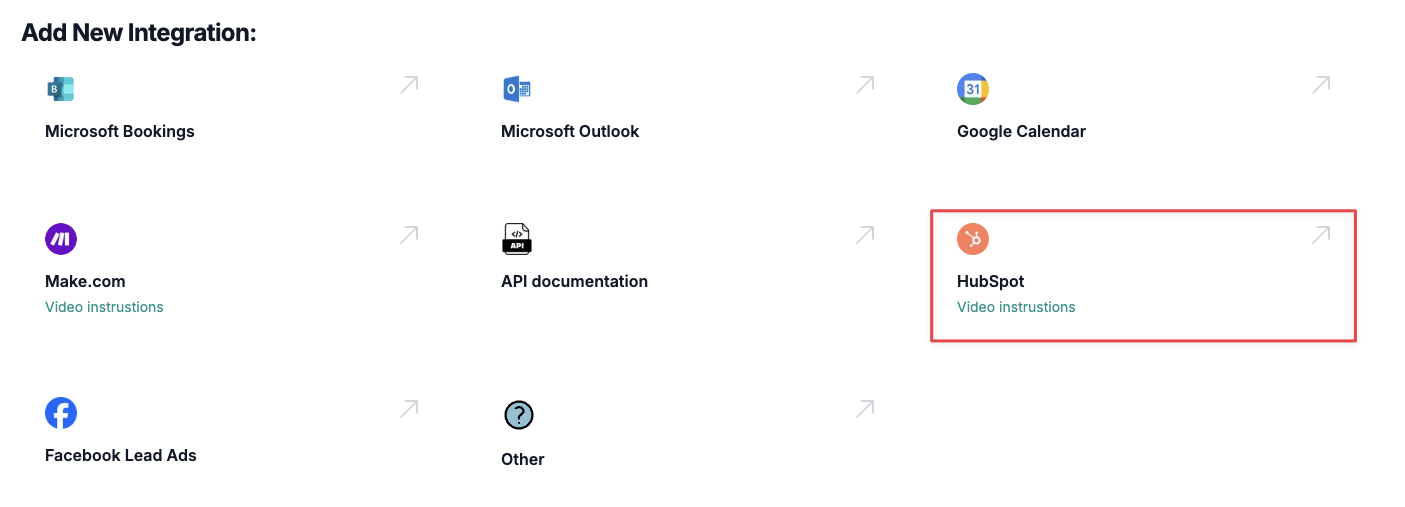
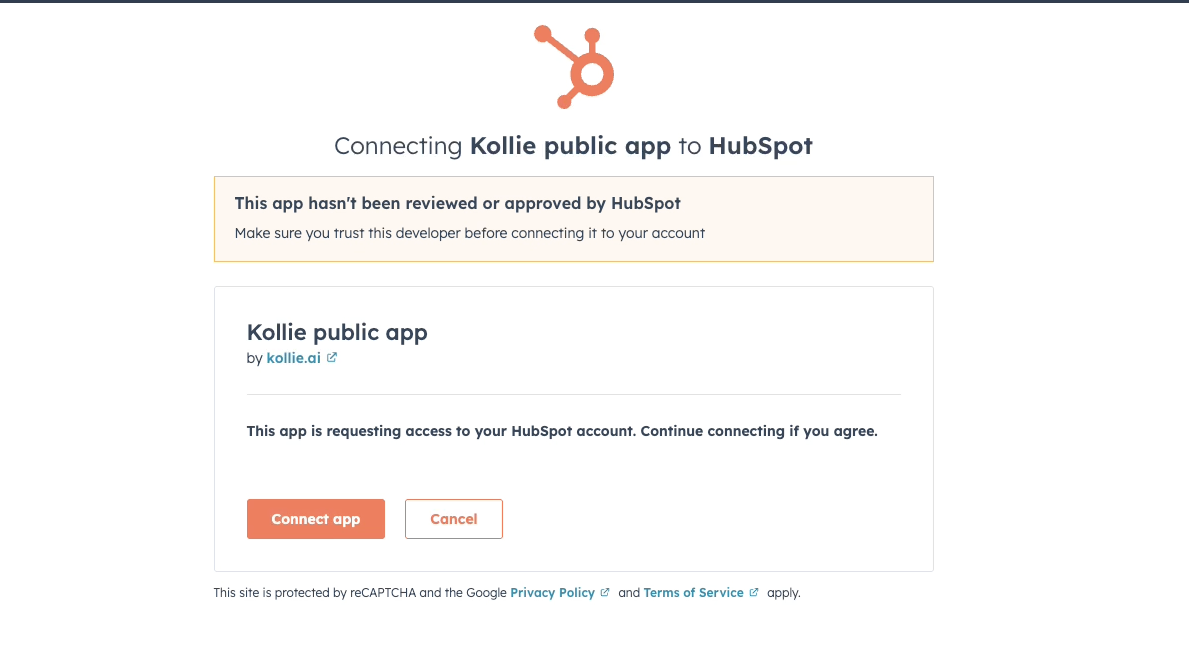
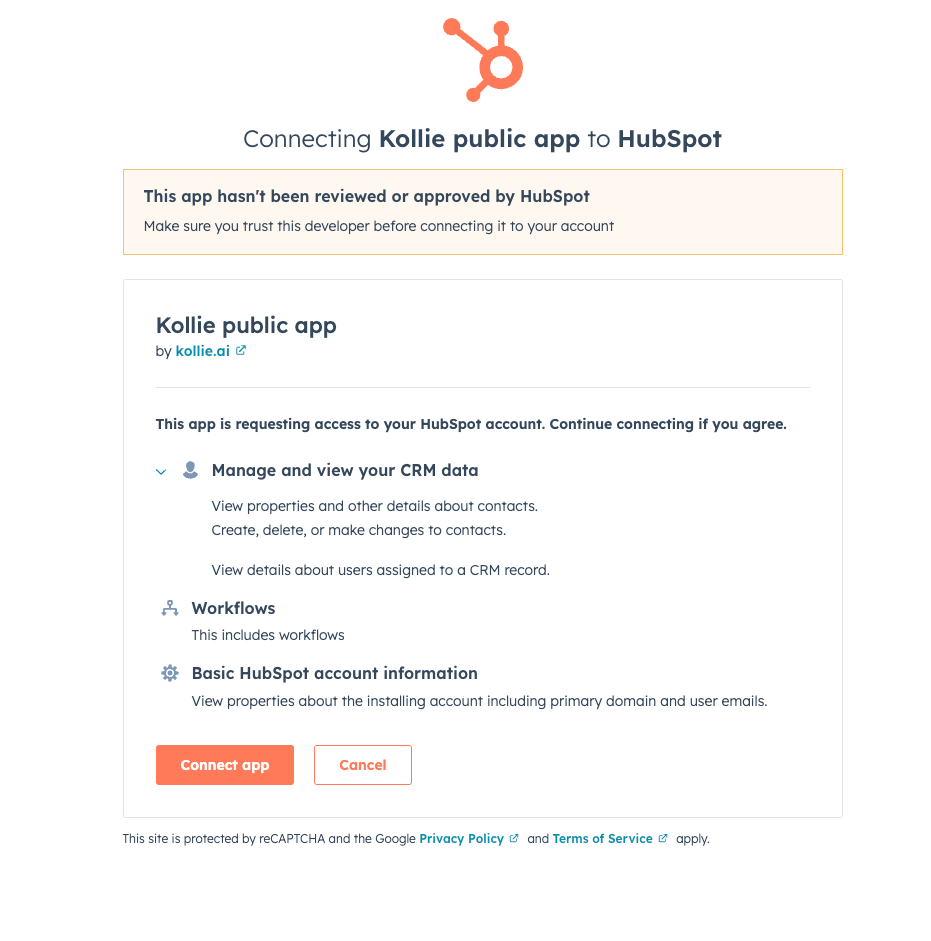
When you first connect Kollie AI, HubSpot will show a consent screen like this. ⚠️ Note: the message “This app hasn’t been reviewed or approved by HubSpot” appears only while our app is in the Marketplace listing process. Once approved by HubSpot, this message will disappear.
Once authorized, you’ll return to the Kollie dashboard and see HubSpot listed as “Connected”.
Step 2. Configure contact mapping
-
In the Integration page, open your HubSpot integration.
-
By default, Phone number is required for matching calls with contacts.
-
Optionally, add other identifiers (email, customer ID, membership ID, custom properties).
-
Click Update to save your mapping.
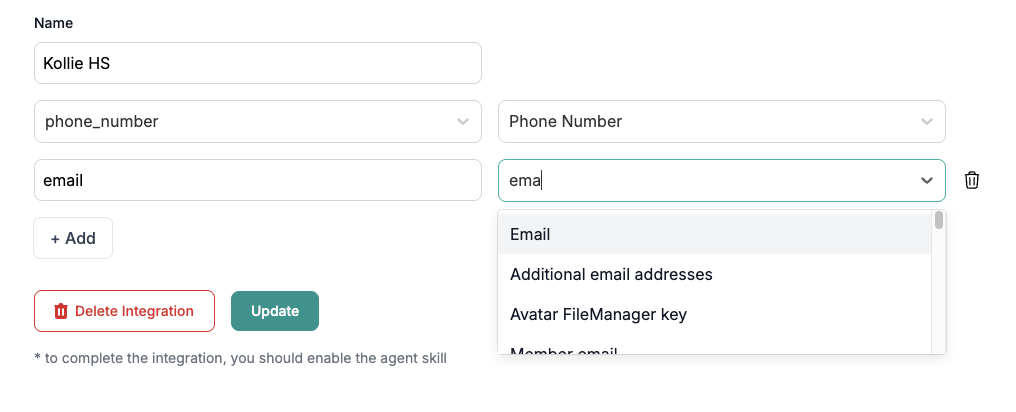
Kollie will now use these rules to match all future calls to HubSpot contacts.
Step 3. Configure agents for HubSpot
After integration, set up your agents to ensure data sync:
- Open an agent in Kollie.
- Go to the Skills tab.
- Click Add skills → HubSpot sync.
- Select the contact and call properties you want to sync (e.g., email, member_id).
- Add another skill: Information Extraction.
- Enter the same properties and provide short descriptions (e.g., “Ask for email address”).
Update the agent’s Main Objective so it prompts for these details during calls.
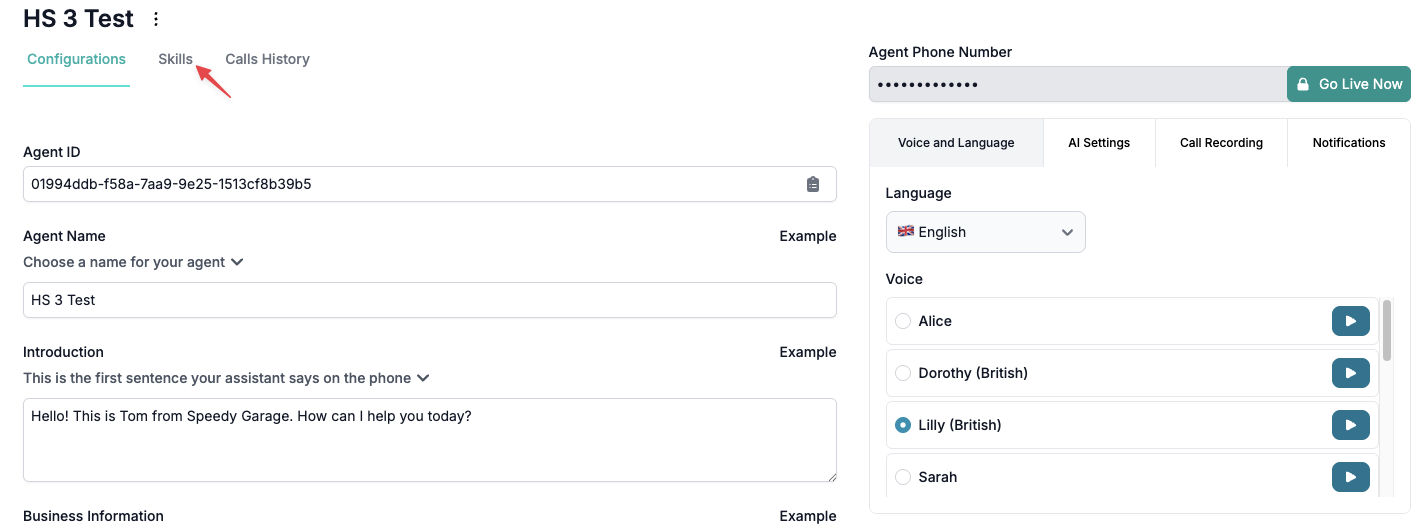
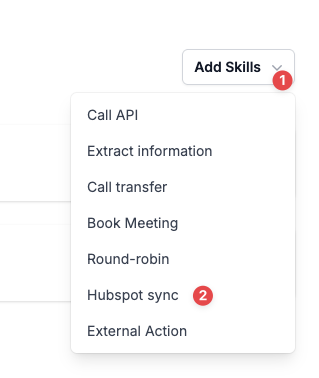
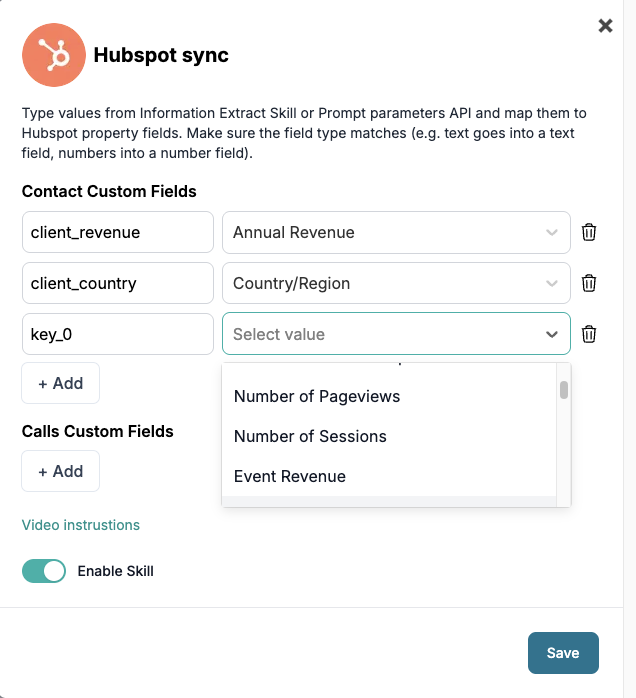
Result: Your agent will extract the values during calls and sync them to HubSpot.
Step 4. Using the HubSpot app
Once installed, Kollie provides a HubSpot app module for workflows:
- In HubSpot, go to Workflows → Create workflow.
- Add the Kollie AI module → Make a phone call.
- Pass in parameters:
-
- Agent ID (required, copy from your Kollie agent)
- Phone number (optional)
- Name (optional)
- Email (optional)
- Make sure your Kollie agent has the HubSpot sync skill enabled.
Personalization: pass {{name}}, {{email}}, {{phone}} as parameters for dynamic greetings.
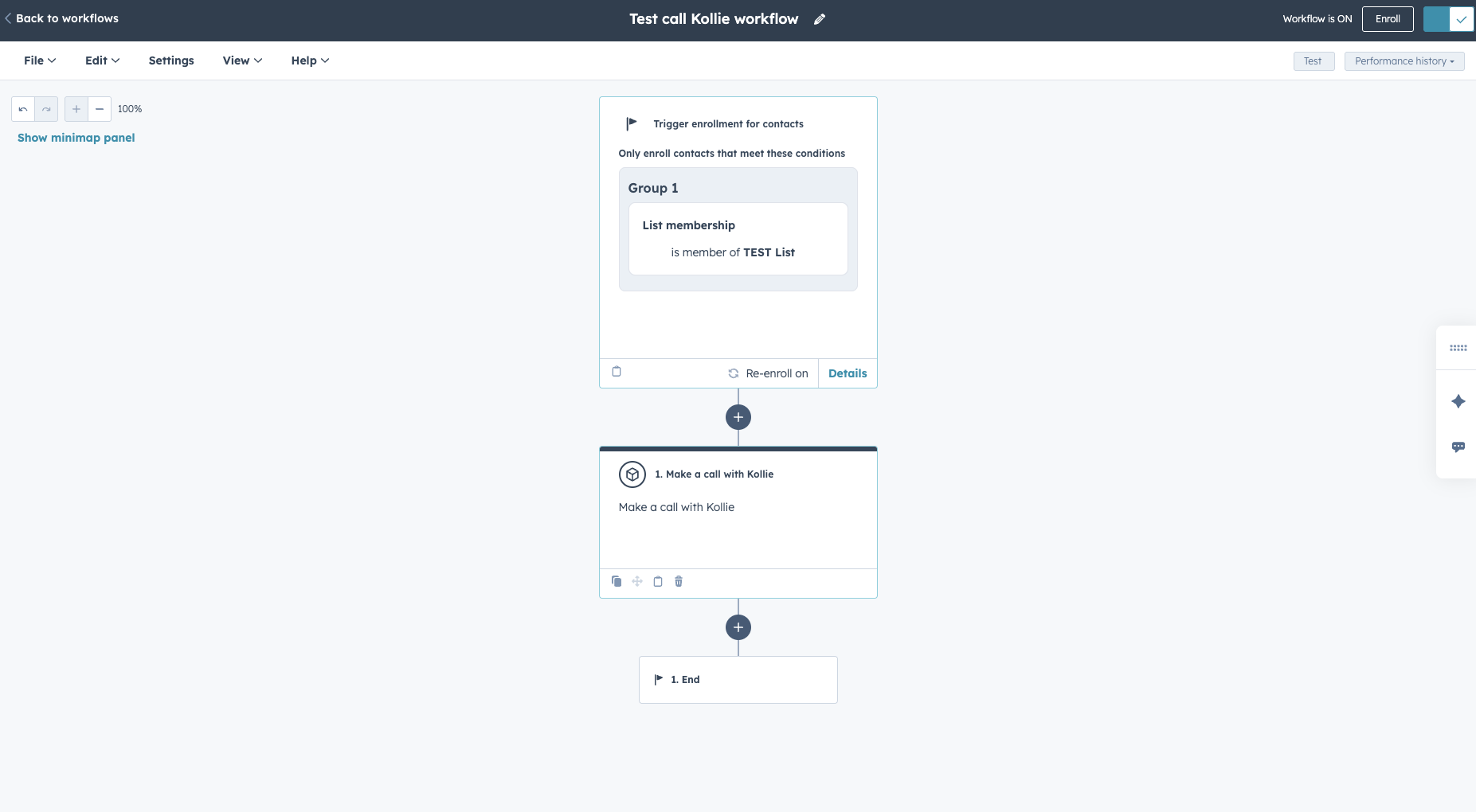
Step 5. How call logging works
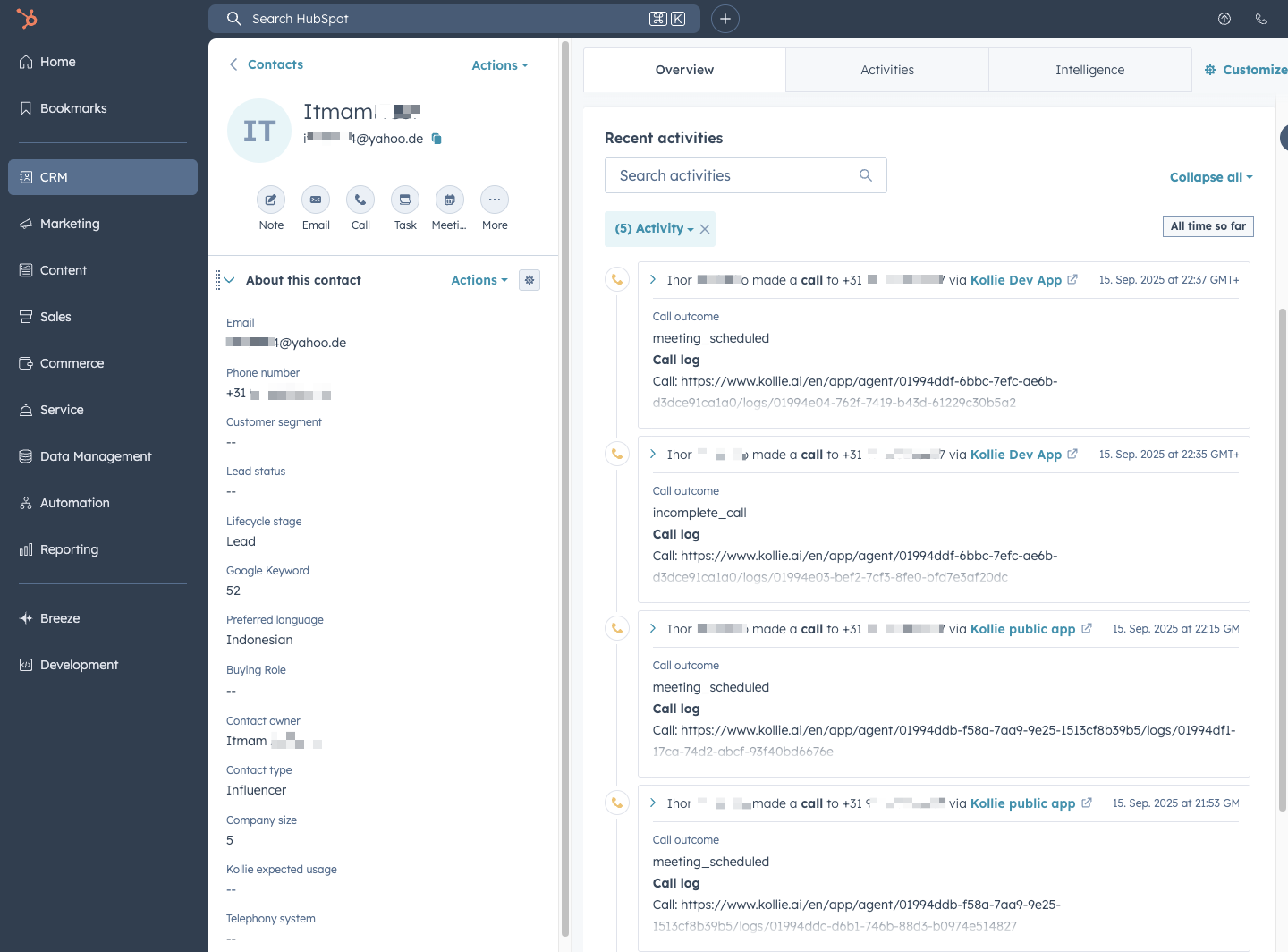
- If a contact exists → call is logged under the contact’s timeline.
- If no contact exists → a new contact is created using your mapping rules.
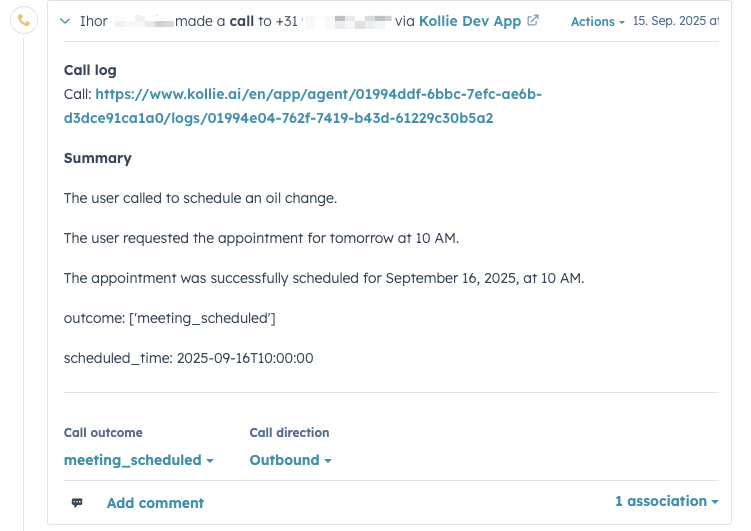
- Each logged call includes:
-
- Direction (inbound/outbound)
- Date & time
- Call summary
- Extracted info (per your mapping)
- Kollie call log link
- Outcome
Viewing logs:
- Open a contact record in HubSpot.
- Go to Activities.
- Find all logged calls with details (summary, transcript link, outcome).
Next steps
- Ensure your agents are trained with Information Extraction skills.
- Use workflows to trigger calls automatically.
- Monitor call activity in HubSpot to validate syncing.
How to Uninstall Kollie AI from HubSpot
If you no longer want Kollie AI connected to your HubSpot account, you can uninstall it directly in HubSpot:
- Log in to your HubSpot account.
- In the top-right corner, click your profile picture → Settings.
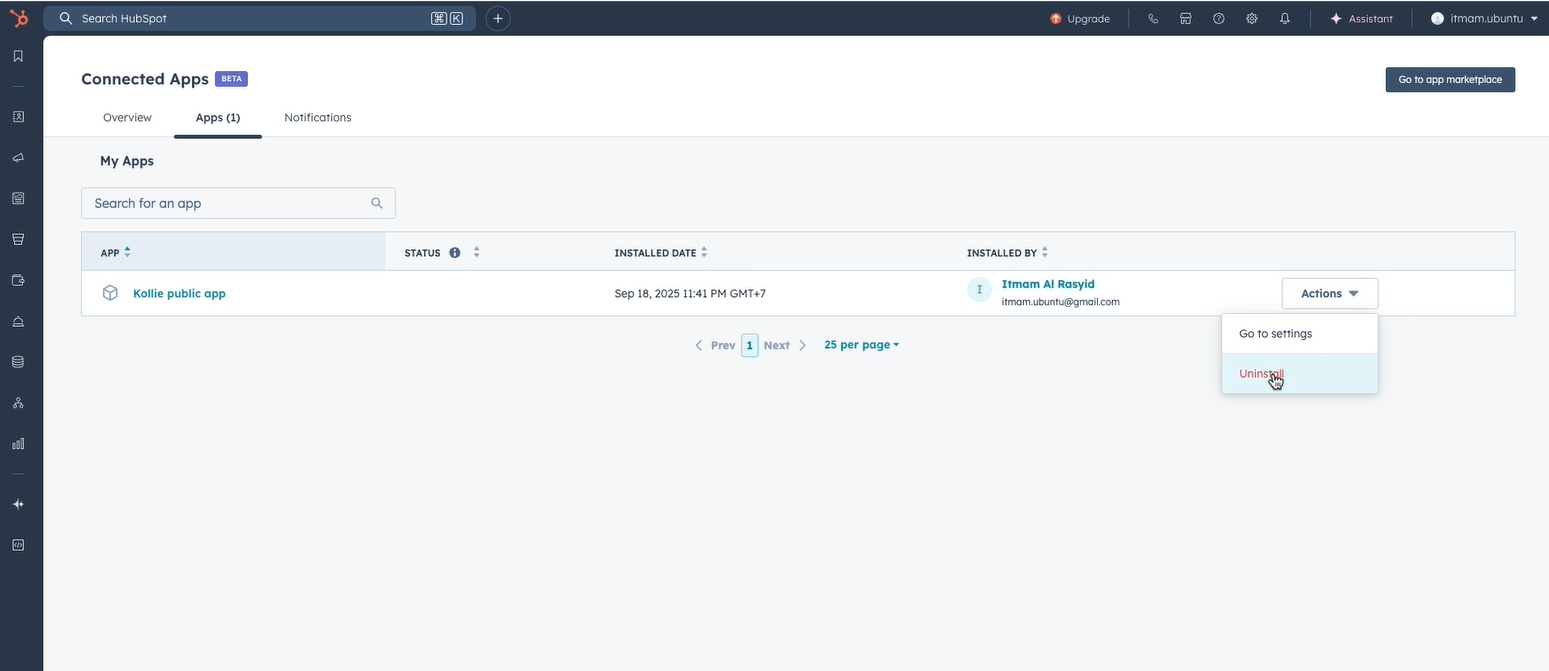
- In the left sidebar menu, go to Integrations → Connected Apps.
- Find Kollie AI in the list of installed apps.
- Click on it, then select Uninstall.
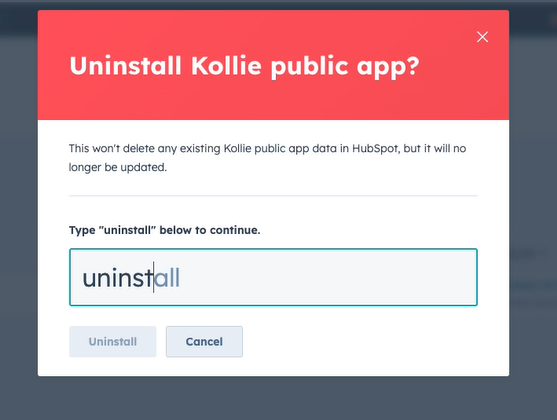
- Confirm the uninstall in the dialog box.
- (Optional) HubSpot will display a survey asking why you are uninstalling. Select a reason or choose Other, then close the window.
What happens to your data
- All call logs, contact updates, and activities previously synced by Kollie remain in HubSpot.
- No new data will be sent after uninstall.
- You can always reconnect Kollie later if needed.