



Browse all articles
Capture details from every call automatically
Automatically capture key details from every conversation, such as the caller's name, interest level or chosen product.
Last updated:
On this page
The Extract Information skill lets your AI agent automatically capture key details from a conversation.
You can define exactly what information to extract, for example the caller's name, interest level or chosen product. The AI detects it directly from the transcript after the call.
This skill is often used to summarize outcomes, collect structured data, or feed information into external systems or reports.
When to use it
Use this skill when you want to automatically:
- Identify important details such as a customer's name, order number or plan type.
- Detect outcomes like
interested,not_interestedorunsure. - Capture feedback, confirmation status, or any other defined data point from the call.
How it works
Each piece of information you want to extract is defined as a data point.
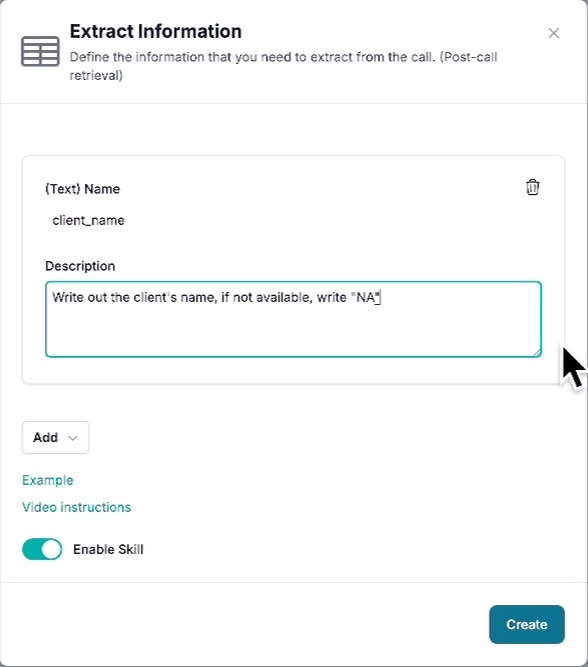
You decide what to capture, name the field, and describe what the AI should look for in the transcript. Once a call is completed, the AI reviews the conversation and extracts the values based on your instructions.
Setup steps
- Go to your Agent → Skills → Extract Information.
- Click Add.
- For each field, configure the following:
- Type: choose the format for your data point:
- Text: for open answers or short text values
- Selector: for predefined options (single or multiple)
- Boolean: for true/false values
- Name: give the field a short, lowercase label using underscores instead of spaces (for example
client_name,purchase_interest). - Description: tell the AI what to extract. Example: "Write whether the customer is interested or not interested to buy our product. Write 'interested', 'not_interested', or 'unsure'."
- Values (Selector only): add the possible options the AI can choose from.
- Type: choose the format for your data point:
- Repeat for as many data points as needed.
- Save your configuration.
Types of extraction
Text
Use this type to capture any open-ended answer or short text. You can also narrow it down to a few expected options.
Example setup:
- Name:
client_goal - Description: "Find out what the caller's goal is for their workout plan."
Output example: client_goal: "lose weight"
Selector (list of options)
Use this when you want the AI to choose from predefined answers. This type can return one or multiple values as an array.
Example setup:
- Name:
preferred_brands - Description: "Fetch the car brands the customer currently owns."
- Values: "BMW", "Mercedes", "Lexus"
Output example: preferred_brands: ["mercedes", "lexus"]
Boolean (true/false)
Use this for yes/no information.
Example setup:
- Name:
is_member - Description: "Mark as true if the caller is already a member."
Output example: is_member: true
Example use cases
- Detect whether the caller is interested in purchasing a product.
- Record the caller's feedback or complaint type.
- Capture which plan or service they chose.
- Identify confirmation or agreement responses automatically.
The Extract Information skill makes post-call data handling effortless, turning every conversation into structured, actionable insights that can be synced to your CRM or reports automatically. To send the data to HubSpot, see Send call data to HubSpot.
Related articles
- What skills can your agent use?Skills let your AI agent perform automated tasks before, during or after a call: call APIs, extract data, transfer calls, book meetings and more.
- Send or fetch data before or after a callFetch context from your systems before a call starts, or send call data to your CRM or automations after it ends.
- Look up live data during a callLet your agent call an API in the middle of a conversation, based on what the caller says, and use the result in its next reply.
Still need help?
Can't find the answer you're looking for? Send us a ticket and our support team will help you set up and improve your agents.
Submit a support ticket