



Browse all articles
Set up Kollie in ChatGPT (MCP plugin)
Add Kollie's MCP server to ChatGPT as a custom plugin and sign in with your Kollie account.
Last updated:
On this page
This guide shows how to add Kollie to ChatGPT. For what ChatGPT can do with your Kollie account, and what you need first, see Connect Kollie to Claude or ChatGPT.
Connect ChatGPT
ChatGPT has no link that fills in the details for you, so it takes a few more steps than Claude.
-
In Kollie, select Connect ChatGPT and copy the connection URL:
https://api.kollie.ai/mcp. You'll find the button on your Analytics page or on an agent's Agent Calls History page. -
Select Open ChatGPT to go to ChatGPT's Plugins page.
-
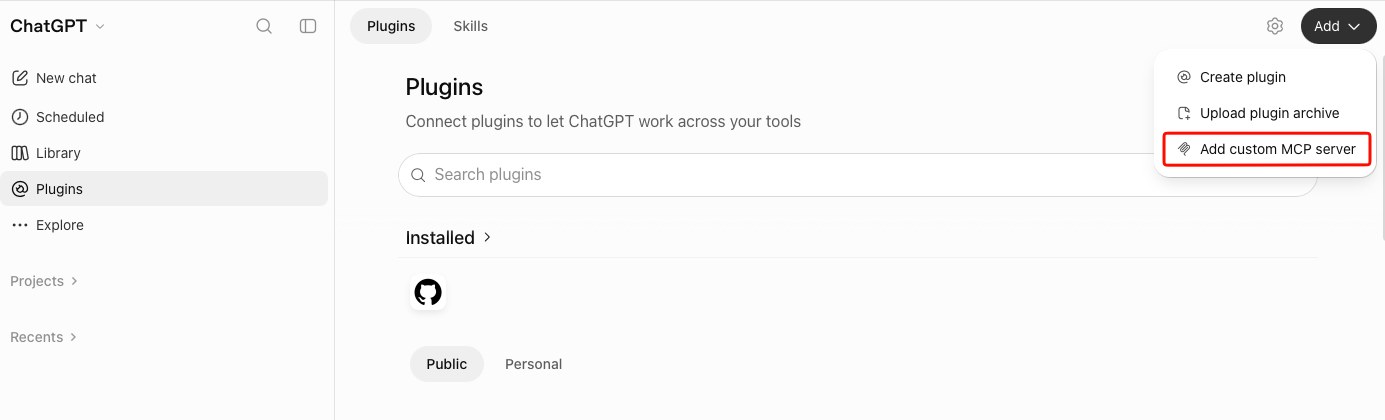
Select Add at the top right, then Add custom MCP server.
-
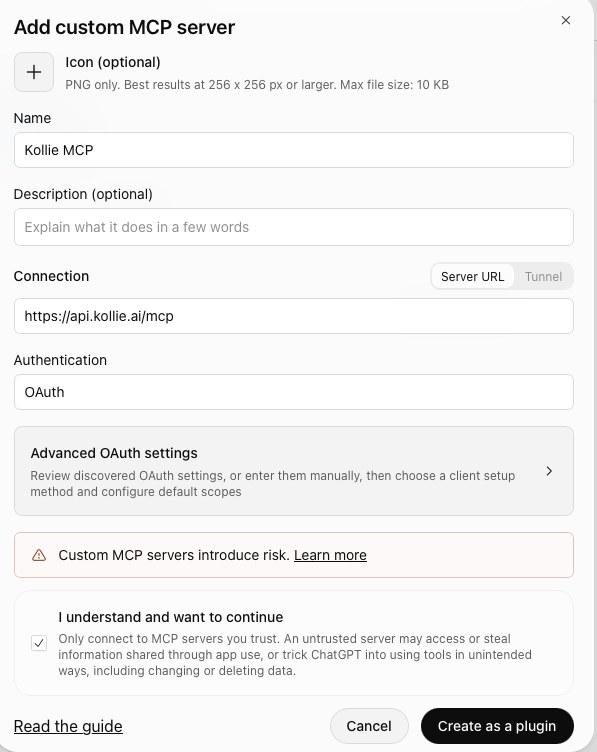
Enter a name, for example
Kollie MCP, and paste the URL under Connection. Keep Authentication set to OAuth. -
ChatGPT warns that custom MCP servers introduce risk. Tick I understand and want to continue, then select Create as a plugin.
-
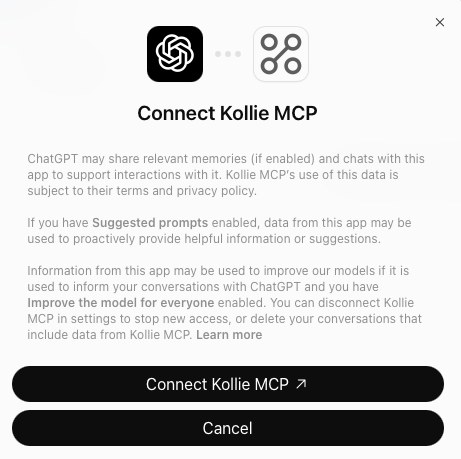
ChatGPT explains what it shares with the plugin. Select Connect to continue.
-
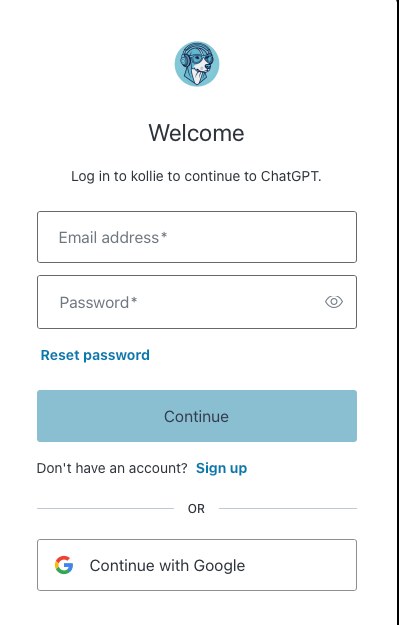
Log in to Kollie to finish.
That's it. Open a new chat and ask "Which Kollie organization am I connected to?" to check that it works.
Troubleshooting
I don't see "Add custom MCP server". Your ChatGPT plan or your workspace admin may need to allow custom servers.
Logging in to Kollie fails. Check that you use the same email address as your Kollie account. If it still fails, remove the plugin and add it again.
Disconnect
Open ChatGPT's settings, find Kollie and disconnect it.
Related articles
- Which tools can Kollie connect to?Kollie connects with popular CRMs, calendars and automation tools so your AI agents work within your existing workflow.
- What the HubSpot integration doesBring your phone conversations and CRM together: log calls automatically, sync contact properties and trigger calls from HubSpot workflows.
- Connect your HubSpot accountConnect your HubSpot account to Kollie AI and configure how Kollie matches callers to HubSpot contacts.
Still need help?
Can't find the answer you're looking for? Send us a ticket and our support team will help you set up and improve your agents.
Submit a support ticket