


Browse all articles
Set up Kollie in Claude (MCP connector)
Add Kollie's MCP server to Claude as a custom connector, sign in or use an API key, and choose which actions need your approval.
Last updated:
On this page
This guide shows how to add Kollie to Claude. For what Claude can do with your Kollie account, and what you need first, see Connect Kollie to Claude or ChatGPT.
Connect Claude
-
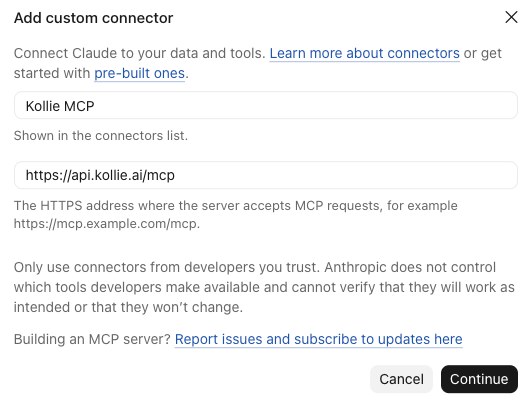
In Kollie, select Connect Claude, then Open Claude. You'll find the button on your Analytics page or on an agent's Agent Calls History page. Claude opens in a new tab with Kollie's name and URL already filled in.
-
Sign in to Claude if you're asked to, then select Continue.
-
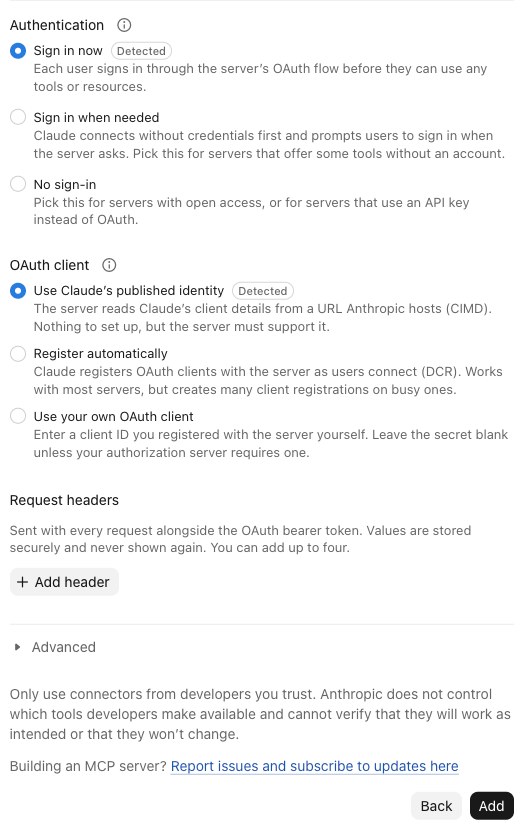
Keep the suggested settings, Sign in now and Use Claude's published identity, and select Add.
-
Sign in to Kollie and approve access.
That's it. Open a new chat and ask "Which Kollie organization am I connected to?" to check that it works.
Set it up by hand
If you'd rather not use the button in Kollie, open Customize → Connectors in Claude, select Add, then Add custom connector.
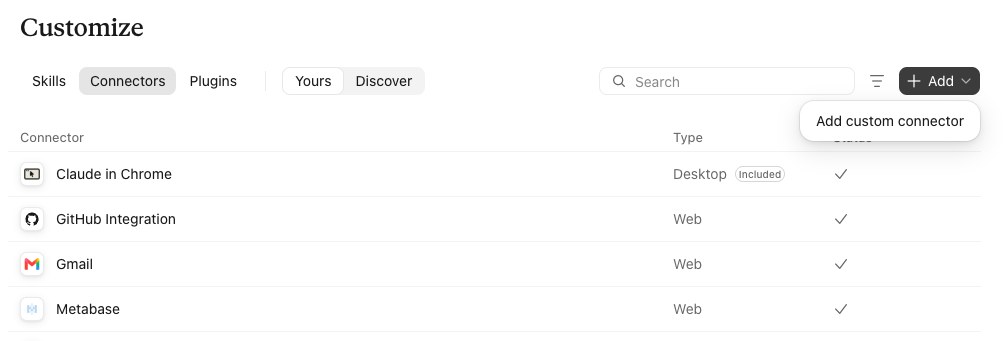
Enter these details, then continue from step 2 above:
| Field | Value |
|---|---|
| Name | Kollie MCP |
| URL | https://api.kollie.ai/mcp |
Use an API key instead
This route is for technical users, or for when signing in doesn't work. It isn't available on every plan; if you don't see API Keys in Kollie's left-hand menu, sign in as described above.
- In Kollie, go to API Keys, create a key and copy it.
- In Claude's connector settings, under Authentication, choose No sign-in.
- Under Request headers, select Add header. Choose
x-api-keyas the name, paste your key as the value and keep Required ticked. - Select Add.
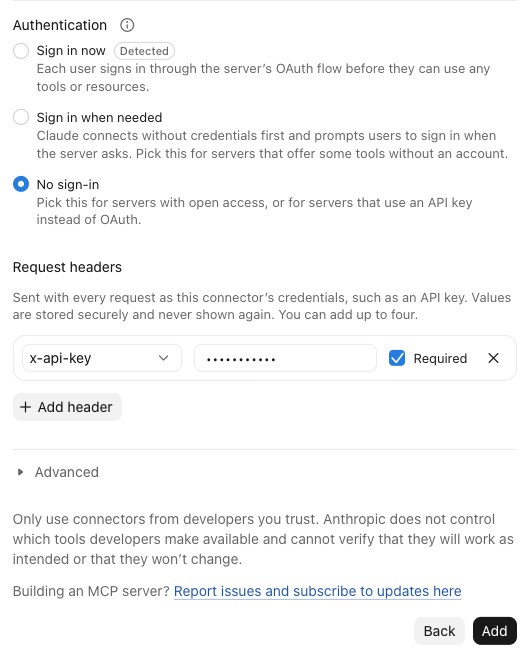
Anyone with this key can see your calls and place calls from your account. Keep it private, and delete it on the API Keys page if it leaks.
Approve calls before they're placed
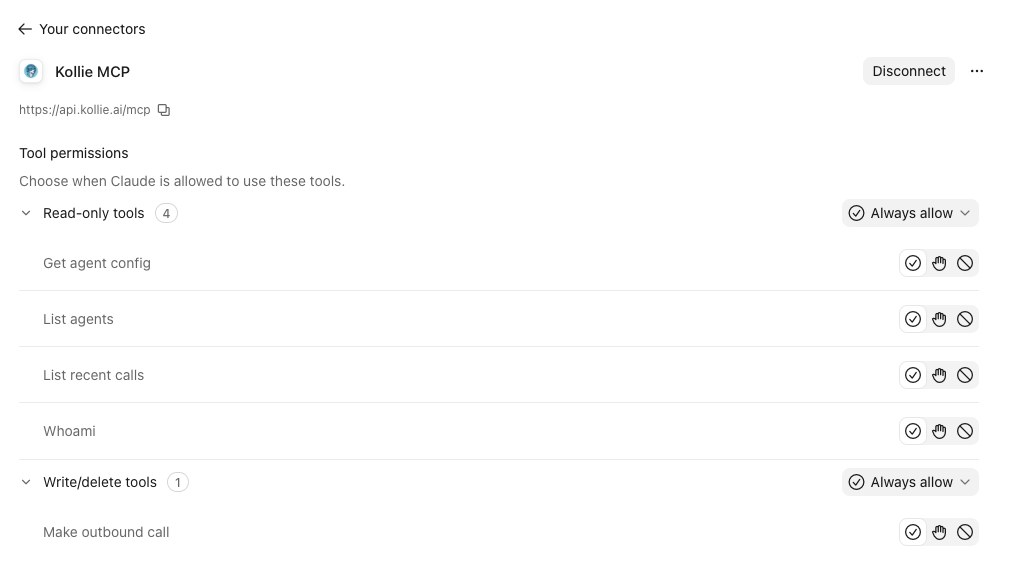
By default, Claude can use every Kollie tool without asking. We recommend making it ask before placing calls, so a call never starts without you checking the number and agent first.
- In Claude, open Customize → Connectors and select Kollie.
- Under Tool permissions, set Make outbound call to needs approval (the hand icon).
Troubleshooting
Signing in to Kollie fails. Try the API key route instead.
Claude doesn't use Kollie in a chat. Check that the Kollie connector is turned on for that chat, and mention Kollie in your question, for example "In Kollie, show me my recent calls."
Disconnect
In Claude, open Customize → Connectors, select Kollie and choose Disconnect. If you used an API key, delete it on the API Keys page in Kollie as well.
Related articles
- Which tools can Kollie connect to?Kollie connects with popular CRMs, calendars and automation tools so your AI agents work within your existing workflow.
- What the HubSpot integration doesBring your phone conversations and CRM together: log calls automatically, sync contact properties and trigger calls from HubSpot workflows.
- Connect your HubSpot accountConnect your HubSpot account to Kollie AI and configure how Kollie matches callers to HubSpot contacts.
Still need help?
Can't find the answer you're looking for? Send us a ticket and our support team will help you set up and improve your agents.
Submit a support ticket